Why I Added Luminar Neo to My Lightroom Workflow (And You Should Too)
If you already use Adobe Lightroom for the majority of your editing (I know I do 🙋♀️), the idea of adding another program to your workflow can feel unnecessary, or even overwhelming.
For years, Lightroom has been my editing home base. It’s brilliant at what it does best: managing large photo libraries, organising shoots, rating and cataloguing images, and making clean, solid RAW adjustments. I’ve always been happy with my Lightroom results.
But recently, Luminar Neo has become my favourite finishing tool, it’s the place I send my images when I want that extra polish, depth, mood, or impact that’s difficult (and sometimes impossible) to achieve in Lightroom alone.
And honestly? I didn’t realise how much I was missing!
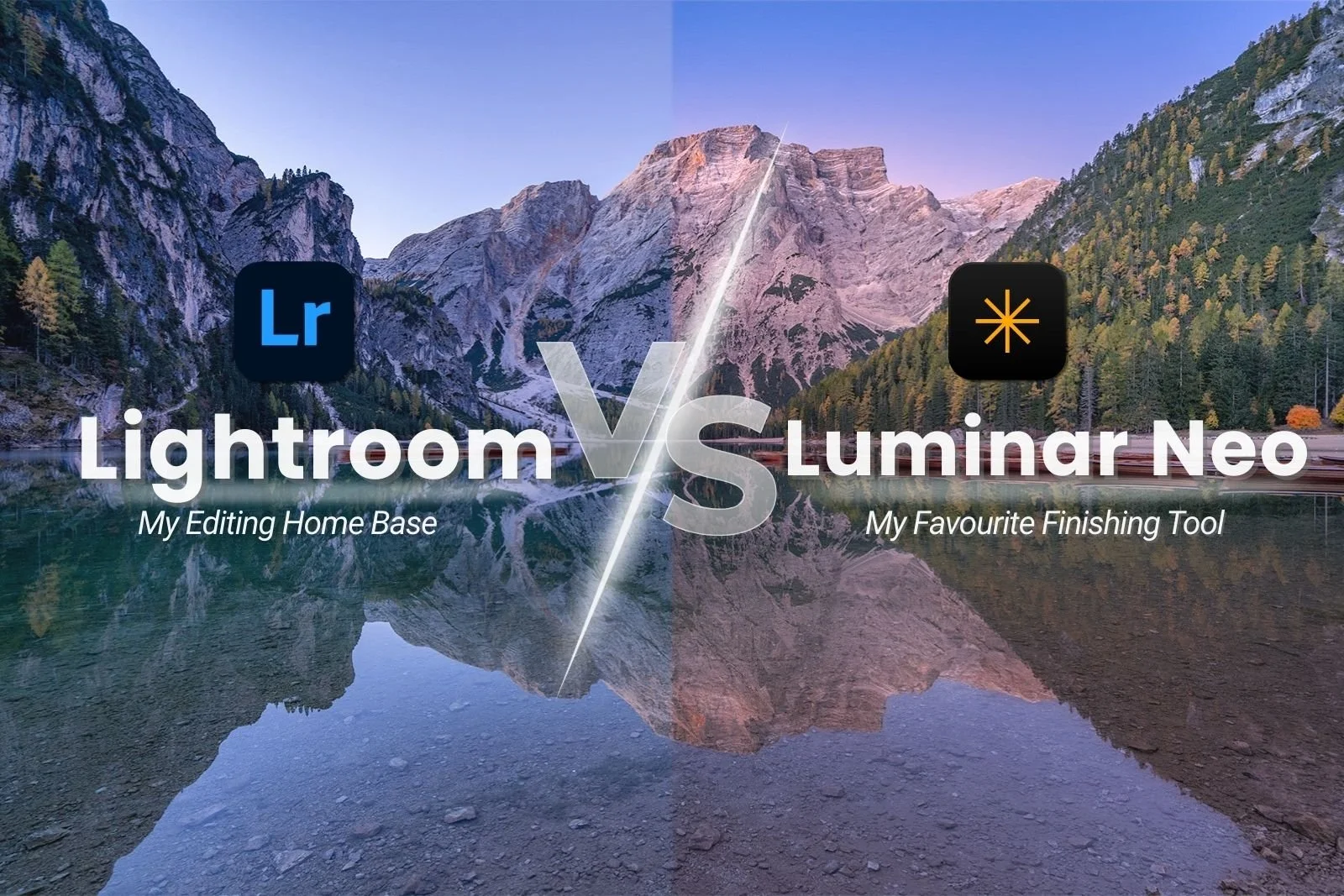
You Don’t Know What You Don’t Know
I think there’s a saying: you don’t know what you don’t know, and that perfectly sums up how I feel about Luminar Neo.
I wasn’t unhappy with my edits before. But once I started running a few images through Luminar Neo, I was genuinely surprised by how subtle changes could make such a significant difference to the final image.
Not over-processed, just… more finished.
Depth feels more dimensional, light is more sculpted in the right places, and colour feels more like how I saw the image in reality.
It’s not just about pushing sliders harder, it’s about having better tools for refinement.
Lightroom Is Still My Home Base (And That Matters)
Let’s be clear: this is not a “Lightroom vs Luminar” argument.
Lightroom is exceptional at:
Photo library management
Rating, cataloguing, and collections
Global RAW edits
Basic masking and colour adjustments
For now, I will still start every image in Lightroom, as it is the foundation of my workflow.
But when I want to:
Reshape light in specific areas
Use highly targeted colour adjustments
Add subtle atmosphere or glow
Balance contrast and depth more intuitively
Fix tricky skies without hours of masking
…that’s where Lightroom does start to feel limited, and where I’d be forced to use more complicated tools in Photoshop.
Photoshop is powerful, but it’s also complex, time-consuming, and intimidating for a lot of people. Learning layers, masks, blend modes, and advanced tools just to give an image a bit more punch can feel like overkill.
That’s where Luminar Neo fits perfectly.
Luminar Neo as a Finishing Tool (Not a Replacement)
I don’t use Luminar Neo for everything - and that’s the key!
Lightroom can remain my hub, but Luminar Neo is where I go to finish an image.
It installs as a plugin for Lightroom Classic, which means I can:
Right-click → Edit in Luminar Neo
Send a TIFF with my Lightroom edits applied
Add refinement and creative polish
Save and return the image straight back into my Lightroom catalog
No messy file management or a broken workflow. No starting again from scratch.
The extra time spent per image is often just a few minutes - but the improvement in depth, contrast, colour balance, and mood can be dramatic, especially for my hero images I plan to print, sell, or share online.
To explain what I mean, here are three very distinct scenarios where Luminar Neo gave me more far more than my finished Lightroom edit could.
Example 1: Light That Feels More Intentional
Before (Lightroom edit):
The image is well exposed and balanced. Highlights and shadows are under control, and nothing looks technically wrong - but the scene feels a little flat. The foreground and background compete for attention, and the light doesn’t guide your eye nicely through the frame.
After (Finished in Luminar Neo):
Without dramatically changing exposure, the light feels more sculpted. After using the Light Depth tool, and other tools to improve the colour palette, there’s clearer separation between foreground, mid ground, and background, and your eye naturally moves through the scene.
The edit now has FAR more impact, and it allows you to appreciate the church on the hill caught in the morning light.
TIP: USE THE SLIDER TO DRAG THE IMAGE BACK AND FORWARD TO SEE BEFORE / AFTER
👉 In Part 2 of this series, I’ll show exactly how Luminar Neo handles light shaping differently from Lightroom, and why it feels more natural.
Example 2: Colour To Harmonise and Enhance
Before (Lightroom edit):
The colours are OK, but it’s a bit flat. And with no ability to edit the HSL (Hue Saturation Luminance) panel with masks, adjusting one individual colour affects that colour throughout the whole image, and fine-tuning this becomes a bit of a juggling act.
After (Finished in Luminar Neo):
Using both HSL with masks, and enhancing the warmth of the dawn with Twilight Enhancer, colour feels more cohesive. Individual tones are refined only where they matter (in the pop of colour in the autumn trees, and in the sky). I’ve also used the Light Depth tool (fast becoming my favourite tool in Luminar) on this image.
The image doesn’t just look more colourful, it looks more harmonised.
👉 In an upcoming post/video, I’ll break down how Luminar Neo’s targeted colour tools differ from Lightroom and why this matters for landscapes.
Example 3: Adding Subtle Mood for Impact
Before (Lightroom edit):
Any attempt to add mood relies heavily on global tools with masking like clarity, dehaze, texture, or contrast - and none of them perform the same way the tools do in Luminar Neo.
After (Finished in Luminar Neo):
This is where Luminar Neo really feels like a finishing tool.
Instead of relying on a single heavy-handed slider, I can layer small, intentional adjustments using tools like:
Mood: to subtly shift colour relationships and emotional tone
Mystical: to add softness and depth without flattening contrast
Glow: for gentle highlight diffusion that feels natural, not hazy
Atmosphere: to introduce fog, mist and haze to add depth and separation in a way that respects the scene
None of these tools are used aggressively on their own. The strength comes from stacking very subtle adjustments, each doing a small job, rather than forcing one or two basic sliders to do everything.
The result isn’t an image that looks more edited, it’s an image that feels more immersive, and in this case quite magical!
👉 In an upcoming post/video, I’ll break down exactly how I use these mood-based tools together, and why they’re so effective for landscape images when used with restraint.
Why This Isn’t “Just Another Subscription”
Another reason Luminar Neo appealed to me is that it isn’t an ongoing monthly commitment like Adobe.
There’s a one-off licence option, which makes it feel like a genuine add-on rather than another regular expense stacked on top of my Adobe subscriptions. There’s also a mobile app, which adds extra flexibility if you like working across devices.
In an era where the hike of the monthly Adobe subscriptions has been a hot topic, a one-off investment should be pretty appealing.
The Real Takeaway
Lightroom gets your images technically correct.
Luminar Neo helps make them emotionally compelling.
It doesn’t replace Lightroom. And it also doesn’t replace Photoshop for every use case.
But as a landscape photographer, Luminar Neo has earned a permanent place in my workflow as the tool I use to give my images that final layer of intention.
And in the next posts in this series, I’ll break down exactly where Luminar Neo shines against Lightroom and Photoshop and where it still has limitations - so you can see if it’s the right fit to incorporate with your own editing process.
Curious to try Luminar Neo for yourself?
If you decide Luminar Neo is a good fit for your workflow, you can purchase it here:
Luminar Neo using code MEGHAN10 for 10% off pricing
This helps support my content at no extra cost to you, and I only recommend software I genuinely use and trust!
Want to read more in this series?
Using Luminar Neo for Light, Colour & Mood (Why These Tools Make Images Pop)
Sky Replacement Showdown: Photoshop vs Luminar Neo
HDR Merge Showdown: Lightroom vs Luminar Neo
Panorama Showdown: Lightroom vs Luminar Neo