Removal Tools Showdown: Photoshop vs Luminar Neo
Which tool wins for removing dust, power lines & people?
Object and distraction removal is now a standard part of most photographer’s photography workflows, whether you’re cleaning up sensor dust, removing power lines, or dealing with random people in your images. Both Photoshop and Luminar Neo offer heavy duty removal tools, but they differ significantly in depth, flexibility, and final image quality. After testing both tools across several real-world scenarios, the results show clear winners depending on what you’re trying to remove.
For this comparison, I’m focusing on Luminar Neo vs Photoshop rather than Lightroom, because Photoshop’s removal toolkit is far more comprehensive and better suited to advanced cleanup work.
Did you also know that I have an online course that covers this topic in detail, helping you choose the right tool for the right task? You can check it out here: Improve your Images: Using Removal Tools in Lightroom & Photoshop
Dust removal = a draw
Let’s start with the simplest task: sensor dust spot removal.
I found no real difference between Luminar Neo and Photoshop for dust cleanup. Both tools are good at detecting and removing dust spots effectively, and both allow quick one-click or brush-based fixes. For typical sky dust spots and small blemishes, either program performs well and delivers clean results with minimal effort.
For dust removal, let’s call it a draw.
Power line removal = Photoshop wins
Power line removal is more demanding because it requires the software to recognize thin, linear elements that cross complex backgrounds like trees, rocks, and sky.
In repeated tests, Photoshop consistently outperformed Luminar Neo. Photoshop’s removal tools detected and removed every visible power line cleanly, even where lines crossed detailed forest textures.

Original image of Neuschwanstein Castle with powerlines across
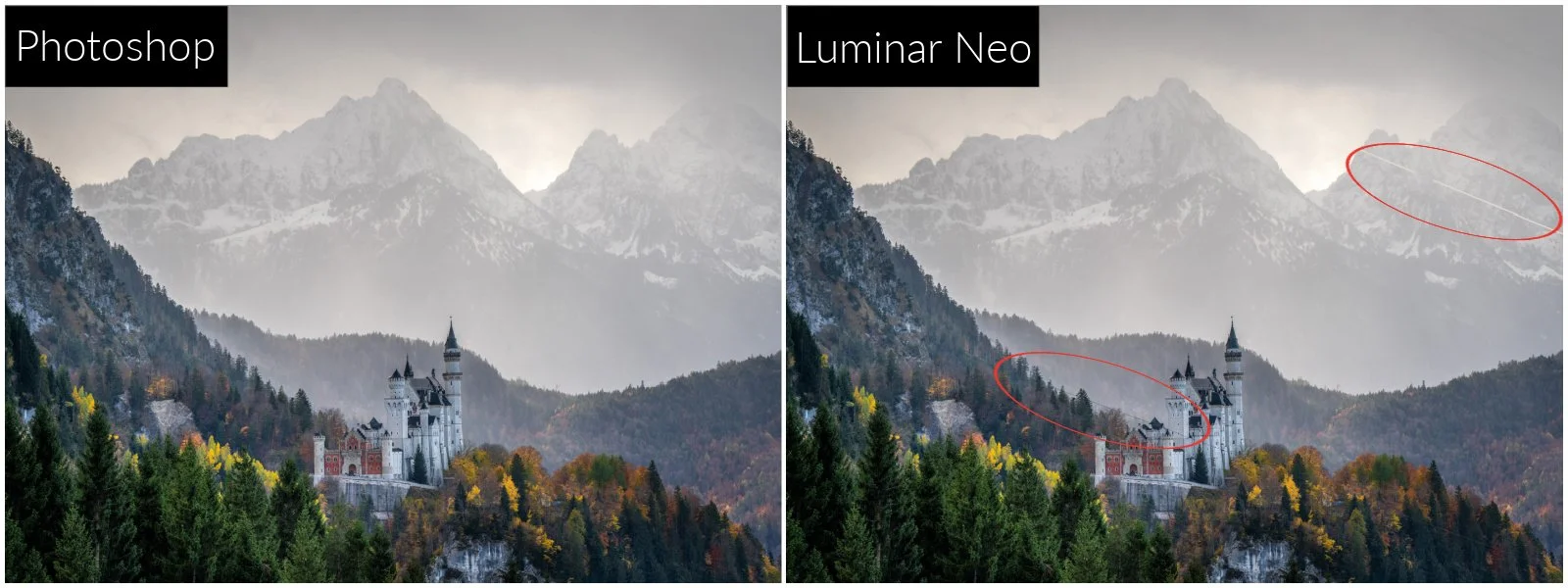
Photoshop vs Luminar Neo: Photoshop produced a clean result where Luminar Neo missed important sections of the power line removal
Luminar Neo’s Power Line Removal Tool showed inconsistent results:
Some lines were missed entirely
Some were only partially removed
In several cases, removed lines left behind white gaps in pixels
Detection was weaker where lines crossed busy backgrounds like trees
I tested multiple images from the same shoot and saw similar behaviour each time, suggesting this wasn’t a one-off failure but a current limitation of the detection model.
Photoshop, by contrast, produced clean, complete removals across the full frame with no issues.
People removal: Photoshop wins on quality & flexibility
People removal is one of the most challenging cleanup tasks, especially in crowded travel locations or foreground-heavy compositions. It often requires more than a single tool to achieve a believable result.
Luminar Neo’s Generative Erase and dedicated People Removal tools seem to work reasonably well for small or isolated subjects, but in more complex scenes I found the results were noticeably weaker than Photoshop’s - particularly when examined at 100% zoom.
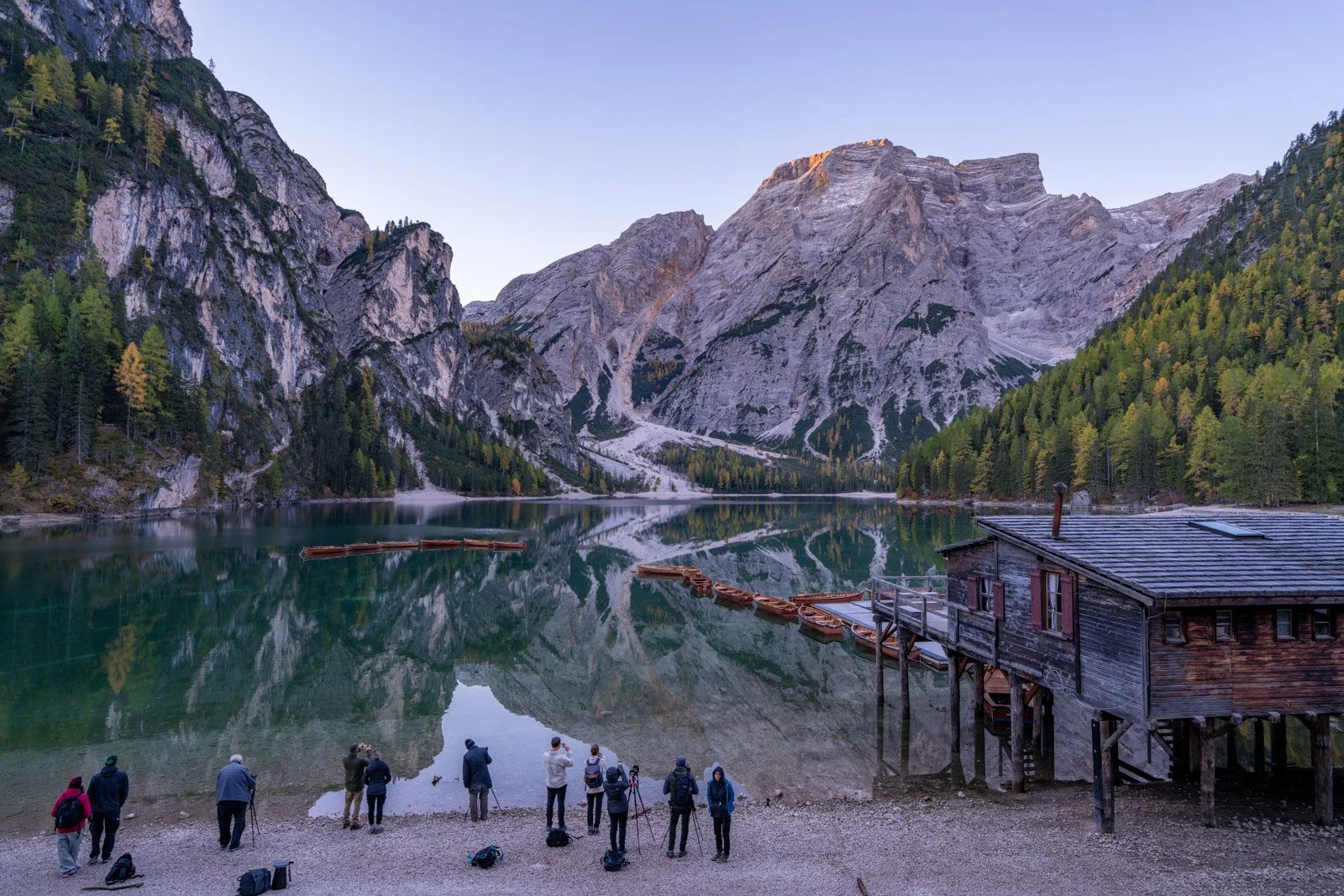
Original image from Lago di Braies - certainly a difficult proposition to remove people from this image regardless of tool used
In my test image (this being the very challenging crowded scene above), Photoshop produced a stronger final result but importantly, that was achieved using multiple tools together, including:
Distraction/People Removal
Remove Tool
Patch Tool
Generative Fill
This layered toolkit approach is where Photoshop really is a step above Luminar Neo.
If one method doesn’t produce a perfect result, you can switch tools and refine the area further. You’re not locked into a single method.
With Luminar Neo, if the Gen Erase result isn’t clean, you have fewer fallback options. In my comparison I found:
Replacement texture resolution was softer
Blur was more noticeable
Fine detail reconstruction was weaker
There was limited ability to refine the fix with alternate methods
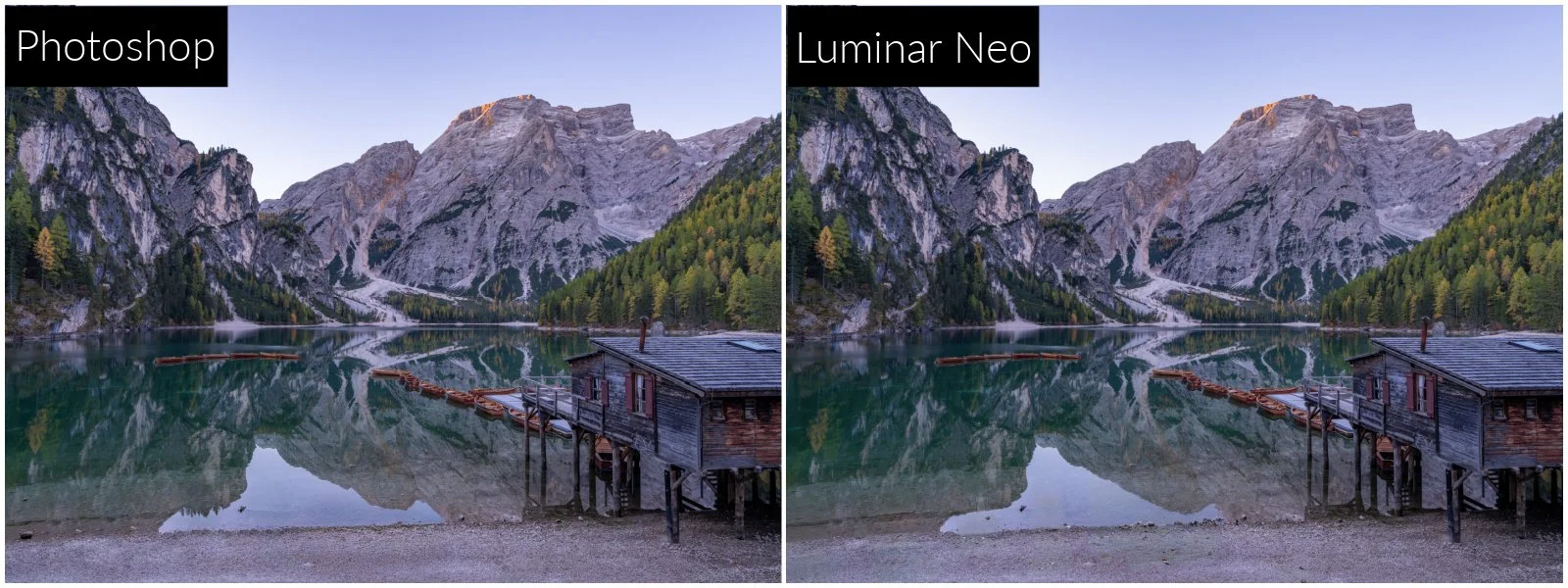
At normal viewing size, there isn’t as much of a discernible difference between the results
The difference may not jump out immediately, but at 100% crop, Photoshop’s result held up better in both texture and detail continuity. The resolution and blur of the replaced section is noticeably worse in Luminar Neo, and there isn’t the ability to then switch tools to try a different method or ‘clean up’ the area further, you’re stuck with this result.
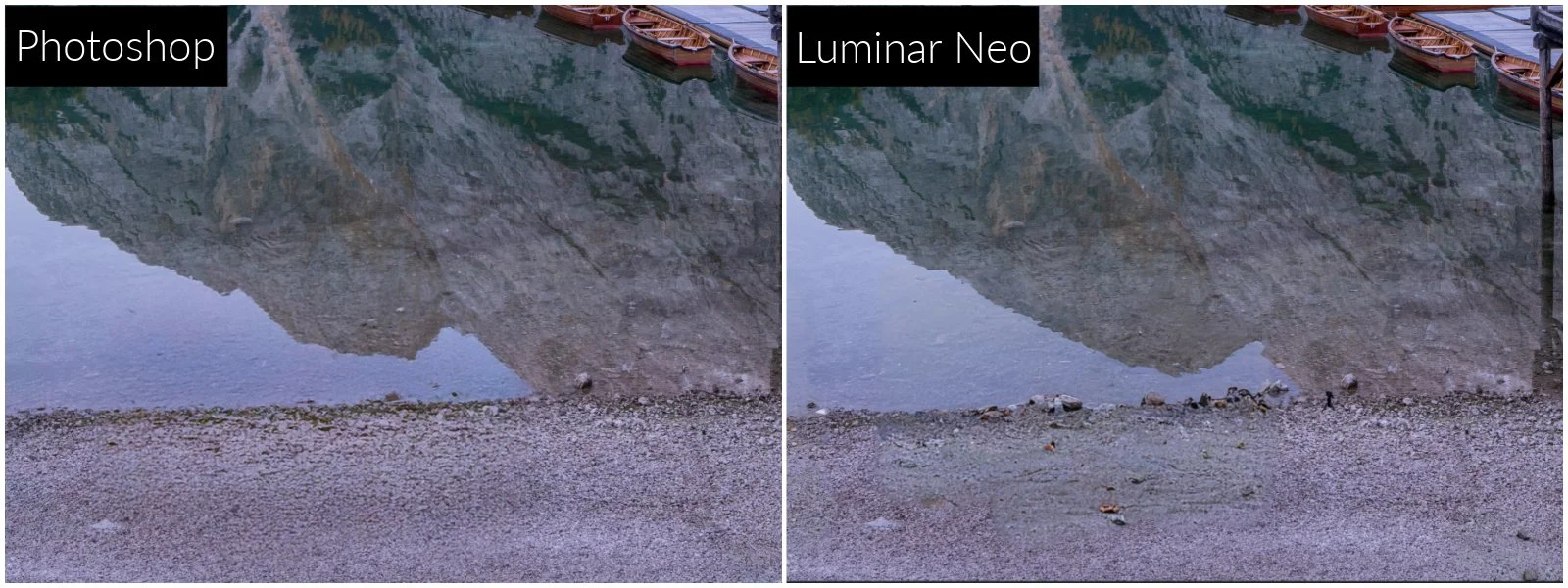
100% zoom of the images above
One-tool vs a multi-tool approach
The core difference between the two programs comes down to tool depth vs simplicity.
Luminar Neo focuses on fast, AI-driven one-step tools. When they work well, they’re quick and convenient. But when they struggle, you then have limited ways to refine the outcome.
Photoshop provides a removal toolkit with a number of removal tools, not just a one-click approach. You can layer methods, mask selectively, and combine approaches until the result looks right. That flexibility does matter when it comes to very difficult edits.
When each tool wins
Luminar Neo works well when:
You’re removing simple dust spots
Distractions are small and isolated
Background textures are simple
You want fast, one-click cleanup
You don’t need a lot of refinement control
Limitations:
Inconsistent power line detection
Softer AI fill detail in complex removals
Fewer tool options when results aren’t clean
Photoshop works best when:
Removing power lines across complex backgrounds
Cleaning up crowded scenes
Removing people from detailed environments
You need multiple repair methods
You want refinement control at pixel level
Trade-off:
More steps
More skill required
Slower workflow
Final Verdict
For quick, simple cleanup, Luminar Neo is perfectly usable. But for critical removal work, especially power lines and people then Photoshop’s multiple tool options, higher-quality fills, and refinement flexibility make it the more better choice
🏆 OVERALL WINNER: PHOTOSHOP 🏆
Curious to try Luminar Neo for yourself?
If you decide Luminar Neo is a good fit for your workflow, you can purchase it here:
Luminar Neo using code MEGHAN10 for 10% off pricing
This helps support my content at no extra cost to you, and I only recommend software I genuinely use and trust!
Want to read more in this series?
Why I added Luminar Neo to My Lightroom Workflow (And You Should Too!)
Using Luminar Neo for Light, Colour & Mood (Why These Tools Make Images Pop)
Sky Replacement Showdown: Photoshop vs Luminar Neo
HDR Merge Showdown: Lightroom vs Luminar Neo